
Introduction
There have been many business card apps in the past. However, wasn't digitizing the data quite a tedious task?
Issues like poor text recognition or failing to place text data into the correct fields for the address book might have been common.
This app uses AI and proprietary algorithms to significantly improve upon these challenges.
Why not transform the tedious task of managing business cards into a smooth and seamless process?
1. Biz card selection screen
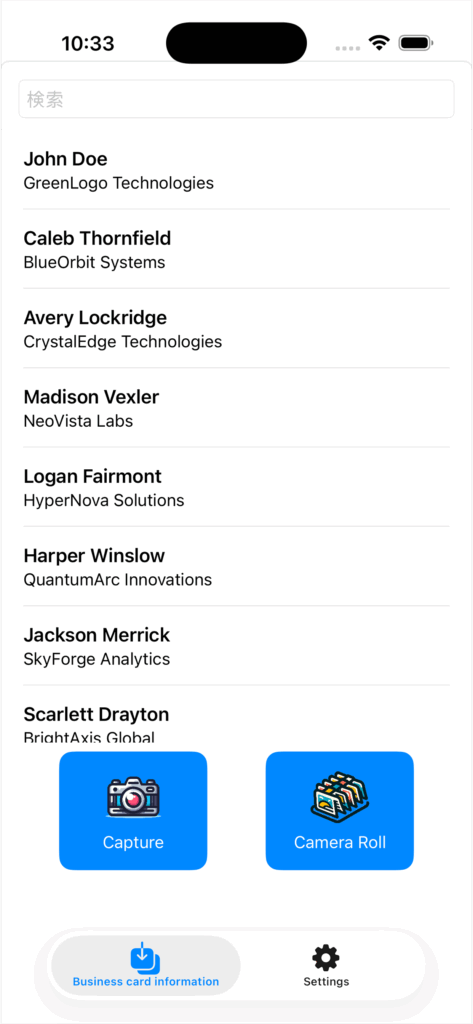
After agreeing to the terms of use, this is the first screen you will see.
(Note: In the illustration, business card data is already displayed, but it will be blank when you use the app for the first time.)
The names and affiliations from the business cards are displayed as a list. Tapping names/affiliation data, "2. Biz card detail screen" will be opened.
Below the list, there are "Capture" and "Camera Roll" buttons, which allow you to load business card data either by taking a photo with your iPhone's camera or selecting from the Camera Roll (photo album).
Below the buttons, there are tabs for "Business Card Information" and "Settings." Normally, you will use the "Business Card Info" tab, and you can select the "Settings" tab when you want to change the app's settings.
2. Biz card detail screen
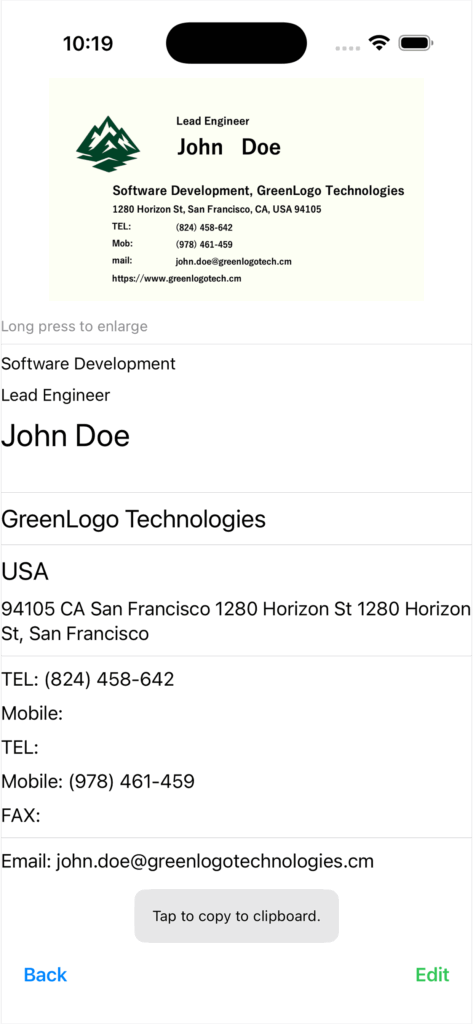
This screen appears when you tap on a name in the "1. Biz card selection screen." The details of each data entry are displayed.
By tapping on each data entry, the information is copied to the clipboard, allowing you to transfer it to other applications.
Pressing "Back" will return you to the "1. Biz card selection screen." Pressing "Edit" will take you to the "3. Biz card data editing screen."
3. Biz card data editing screen
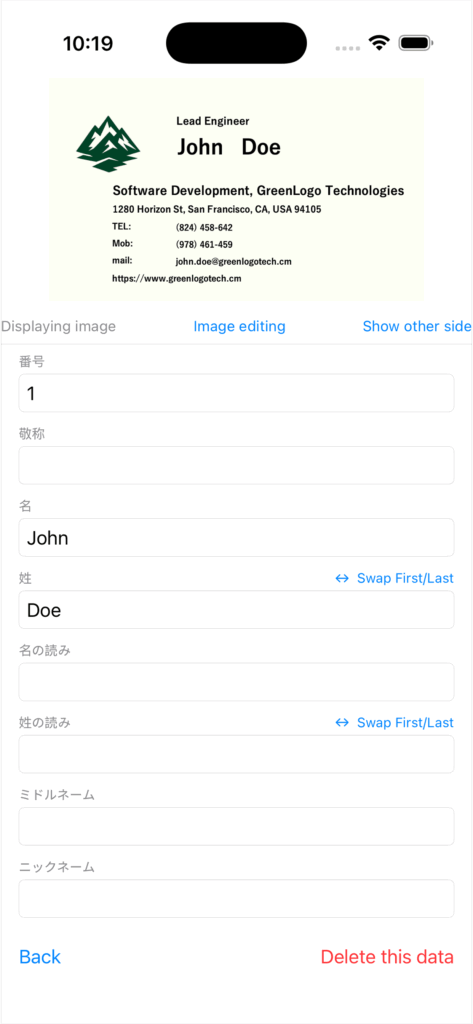
This screen appears when you press "Edit" button on the "2. Business Card Data Display Screen." Here, you can edit the details of each image.
By pressing "Image editing," you will be taken to the "4. Business Card Image Editing Screen," where you can adjust the rotation and cropping of the business card image.
Pressing "Show other side" allows you to view the back side of the business card if the reverse side was captured.
4. Biz card image edit screen
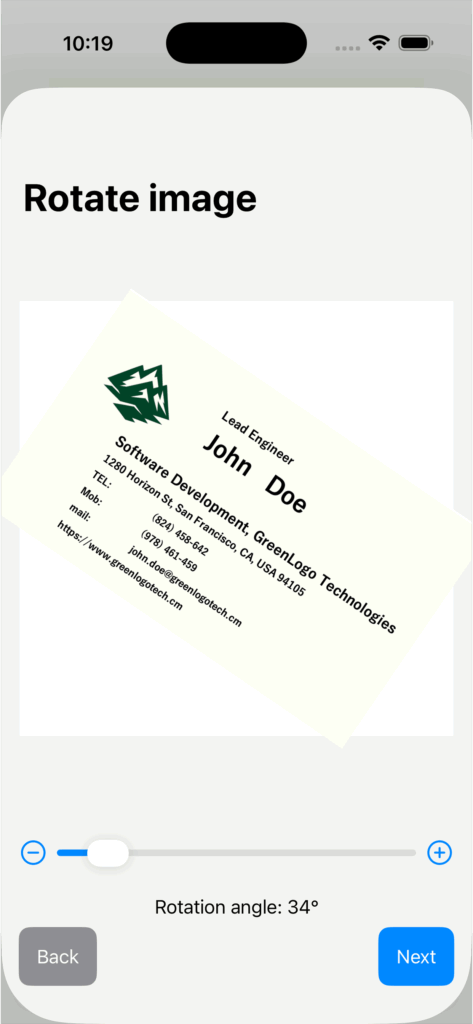
This screen appears when you press the "Edit" button on the "3. Business Card Data Editing Screen."
Through two dialogs—Image Rotation and Image Cropping—you can adjust the orientation and cropping of the business card image.